
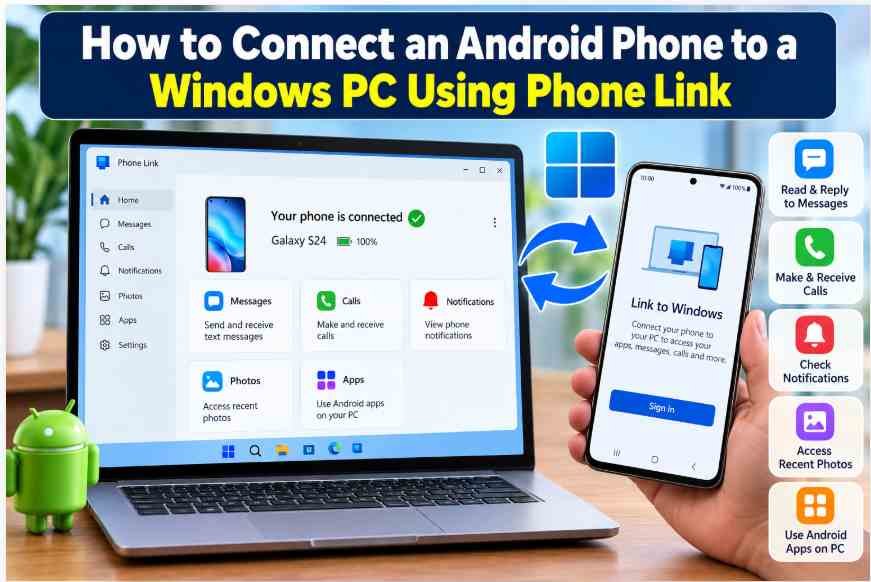
Constantly checking your smartphone while working on a laptop or desktop can interrupt your productivity. Whether you need to reply to a text message, answer a call, check notifications or access a recent photo, switching between devices can become inconvenient.
Microsoft offers a convenient solution called Phone Link, which lets you connect a compatible Android smartphone to a Windows PC. Once connected, you can manage supported phone features directly from your computer, helping you stay focused on your work without repeatedly picking up your phone.
The setup process is straightforward and uses Microsoft’s Phone Link app on your PC and the Link to Windows app on your smartphone. Here is how to connect your Android phone to a Windows computer, along with its key features and system requirements.
What Is Microsoft Phone Link?
Microsoft Phone Link is a Windows application that connects your smartphone to your computer. It provides access to supported phone features through your PC, reducing the need to switch between screens throughout the day.
Depending on your smartphone model, Windows version and granted permissions, Phone Link can help you:
- Read and reply to text messages.
- Make and receive phone calls.
- View smartphone notifications on your computer.
- Access recent photos from your phone.
- Use selected Android apps on your PC.
- Interact with supported phone features using your computer’s keyboard and mouse.
Some features are limited to compatible smartphone models, so the experience may differ between Android devices. Phone Link also supports iPhones, although the available features vary by platform.
How to Connect an Android Phone to a Windows PC
Follow these steps to pair your Android smartphone with your Windows computer.
Step 1: Open Phone Link on Your PC
Click the Windows search box on your taskbar and type Phone Link. Open the application from the search results.
If the application is not installed or enabled, check Windows Settings for Phone Link installation options.
Step 2: Select Android
When the application opens, choose the Android option and follow the on-screen instructions. Sign in with your Microsoft account if prompted.
Step 3: Install Link to Windows on Your Smartphone
Open the Google Play Store on your Android phone and search for Microsoft’s official Link to Windows app if it is not already installed.
Some compatible smartphones come with the app preinstalled. You can also follow the installation link displayed on your PC.
Step 4: Sign In With the Same Microsoft Account
Open Link to Windows on your smartphone and sign in using the same Microsoft account used during the PC setup.
Using the same account helps establish the connection between your devices.
Step 5: Pair Your Phone Using a QR Code
Return to Phone Link on your PC and select the option to pair using a QR code.
A QR code will appear on your computer screen. Open Link to Windows on your phone, choose the phone-linking option and follow the prompts to scan the code.
If QR-code pairing is unavailable or does not work, follow the alternative pairing instructions shown in the app.
Step 6: Grant the Required Permissions
After scanning the QR code, follow the instructions on both devices and approve the permissions needed for the features you want to use.
Depending on your preferences, these may include access to notifications, contacts, calls, messages and photos.
Once pairing is complete, return to Phone Link on your PC to explore the available features.
For the latest instructions and troubleshooting guidance, visit Microsoft’s official Phone Link setup guide.
What Can You Do With Phone Link?
After connecting your smartphone and PC, you can use several features from your computer, depending on device compatibility and permissions.
1. Read and Reply to Text Messages
Phone Link lets you view supported text messages and respond using your computer’s keyboard. This can be particularly useful when working on documents or browsing the web.
Message functionality depends on your device, messaging configuration and the permissions you grant.
2. Make and Receive Calls
On compatible devices, you can use your PC to make and receive phone calls. Bluetooth connectivity and additional permissions may be required for calling features.
3. Check Notifications on Your Computer
Phone notifications can appear on your PC, allowing you to check alerts without repeatedly unlocking your smartphone.
You can manage notification access through the app settings and your phone’s permission controls.
4. Access Recent Photos
Phone Link can display recent photos from a connected Android device. This makes it easier to access supported images while working on your computer.
The available photo features may vary by smartphone model and app version.
5. Use Supported Android Apps
On selected smartphones, Phone Link also allows you to open and interact with Android apps from your Windows PC.
This feature has additional compatibility requirements and is not available in the same way on every Android device.
What Are the Requirements for Connecting a Phone to a PC?
Before setting up Phone Link, check the following requirements.
- Windows PC: A supported Windows 10 or Windows 11 computer. Microsoft’s current setup guidance specifies Windows 10 with the October 2022 update or later, or Windows 11.
- Android smartphone: A compatible device running Android 10 or later under Microsoft’s current general setup guidance.
- Required apps: Phone Link on the computer and Link to Windows on the smartphone, where required.
- Microsoft account: Sign in using the same account on both devices.
- Network connection: Keep both devices connected to the same Wi-Fi network for the standard Android setup.
- Permissions: Grant access to the phone features you want to use.
Requirements for individual features, such as app mirroring, may be different from the requirements for basic phone linking. Check Microsoft’s official documentation for your specific device.
Tips for Fixing Phone Link Connection Problems
If your Android phone does not connect to your Windows PC, try these troubleshooting steps:
- Check your Wi-Fi connection: Make sure both devices are connected to the same Wi-Fi network when required.
- Update both apps: Install available updates for Phone Link and Link to Windows.
- Verify your Microsoft account: Confirm that both apps are using the intended account.
- Review permissions: Check whether the phone has granted the permissions needed for calls, messages or notifications.
- Restart both devices: Restart your PC and smartphone, then try pairing again.
- Repeat the pairing process: If the connection continues to fail, follow Microsoft’s instructions for removing and reconnecting the device.
Is Microsoft Phone Link Safe to Use?
Phone Link is Microsoft’s built-in phone-to-PC connection solution. However, linking your devices allows the PC to access certain phone information when you grant the necessary permissions.
For better privacy, review which features are enabled, limit permissions to those you need, and avoid pairing your phone with a shared or untrusted computer. Be especially careful when allowing access to messages, because sensitive information, including verification codes, may be visible on the PC.
Frequently Asked Questions (FAQs)
1. Can I connect my Android phone to a Windows 11 PC?
Yes. Phone Link supports connecting compatible Android smartphones to Windows 11 PCs. Follow the pairing instructions and check your device’s compatibility.
2. Do I need a USB cable to connect my phone to my PC?
A USB cable is generally not required for the standard Phone Link setup. The connection uses supported wireless connectivity and account pairing.
3. Can I make phone calls from my Windows computer?
Yes, on compatible devices. You may need to enable Bluetooth and grant the required permissions before using calling features.
4. Can Phone Link display WhatsApp and other Android apps?
Some compatible smartphones support running selected Android apps through Phone Link. Availability depends on your device and the supported app experience; it does not mean every phone app is installed directly on Windows.
5. Is Phone Link available for iPhones?
Yes. Phone Link supports iPhones as well as Android devices, but its features and setup process differ between the two platforms.
Conclusion
Microsoft Phone Link offers a convenient way to connect an Android smartphone to a Windows PC and manage supported calls, messages, notifications and photos from one screen.
The setup involves opening Phone Link on your computer, signing in, pairing your smartphone through Link to Windows and granting the required permissions. Once connected, the feature can help reduce interruptions and make everyday computer work more convenient.
Before getting started, check your Windows version, Android compatibility and network requirements to ensure that your devices support the features you want to use.










Discussion about this post